


Guide d'utilisation du tableau de bord LCD pour voiture - Guide de mise à niveau
Tableau de bord LCD pour voiture — Guide de l'utilisateur
Ce guide vous aide à vous familiariser avec Ikagoo Tableau de bord à écran LCD pour voiture—une solution définie par logiciel tableau de bord numérique (alias groupe d'instruments numériques / tableau de bord à écran LCD). Vous apprendrez à utiliser une boussole et à vous orienter, ainsi que les différences entre la duplication d'écran et. Intégration d'un autoradio Android, styles d'interface utilisateur et d'ambiance, informations sur le véhicule et l'entretien, heure et langue, réglages de luminosité et du pointeur, et PQ / MQB étalonnage.
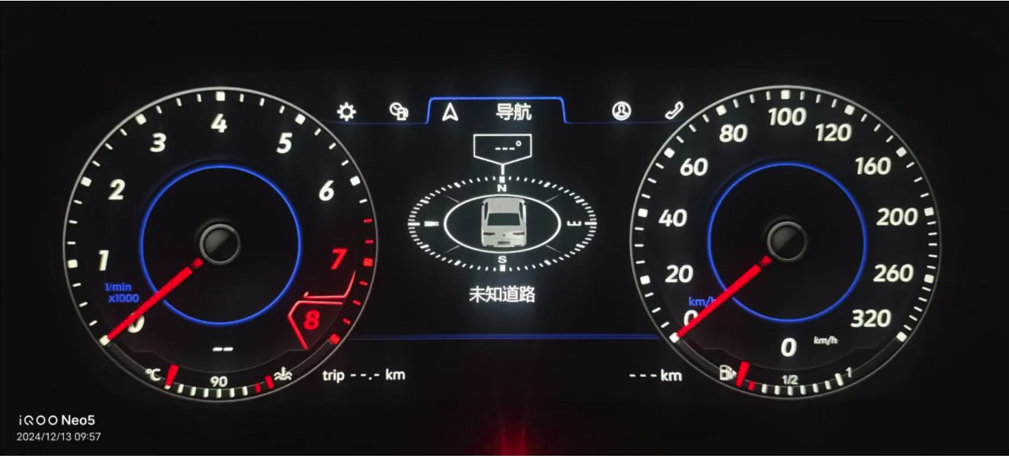
1) Vues « Boussole » et « Navigation »
- Vue de la boussole : Les données de cap et de route proviennent de l'unité principale d'origine VW (AID) des versions haut de gamme. Sur les modèles VW, le comportement est identique à celui Volkswagen Active Info Display—L'usine de VW affichage du cockpit virtuel mise en œuvre.
- Changement de source de navigation : Sur l'écran de la boussole électronique, appuyez sur la touche de fonction pour basculer entre la mise en miroir du téléphone et l'intégration de l'unité centrale (voir la vidéo d'installation pour connaître la marche à suivre exacte).
- Échelle de la carte : Dans le Classique disposition de la navigation, appui long OK pour régler le niveau de zoom de la carte.
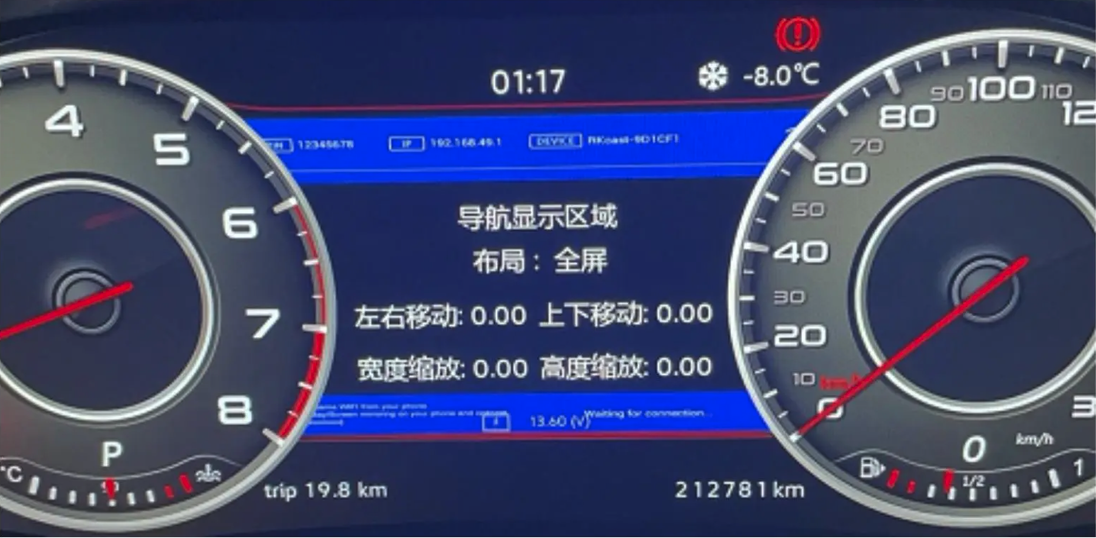
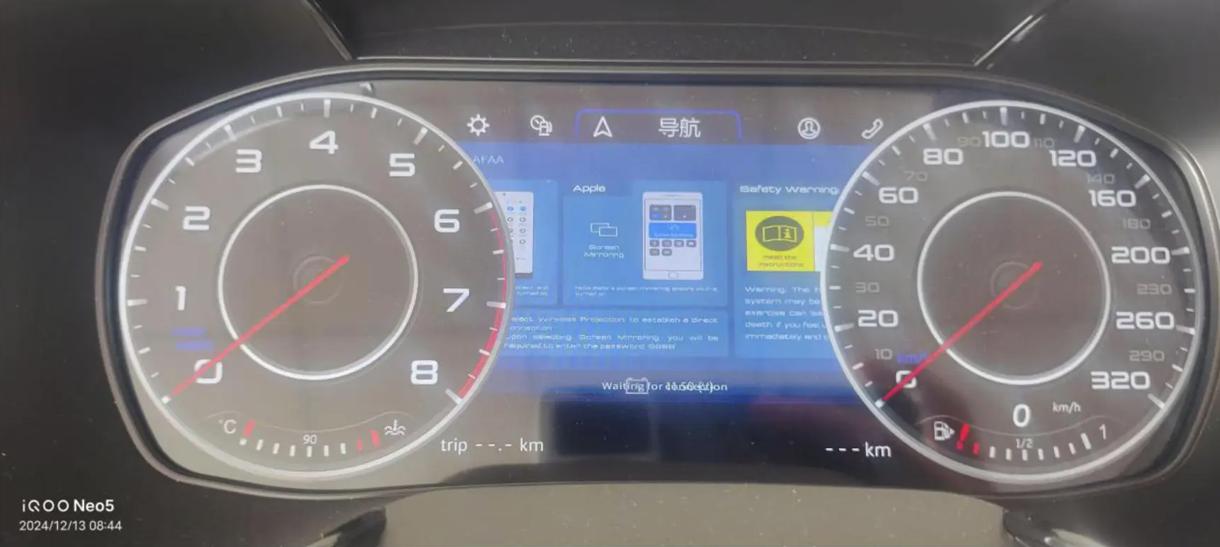
2) Thèmes de l'interface utilisateur, appels Bluetooth et informations sur le véhicule
- Thèmes d'interface utilisateur : jusqu'à 8 thèmes disponibles pour s'adapter à vos préférences en matière de lisibilité et de style.
- Appels Bluetooth : Le cluster ne prend pas en charge les appels Bluetooth. Connectez votre téléphone à l'unité centrale. Si le système analogique ne prenait pas en charge les appels Bluetooth, le tableau de bord à écran LCD ne permettra pas d'ajouter cette fonctionnalité.
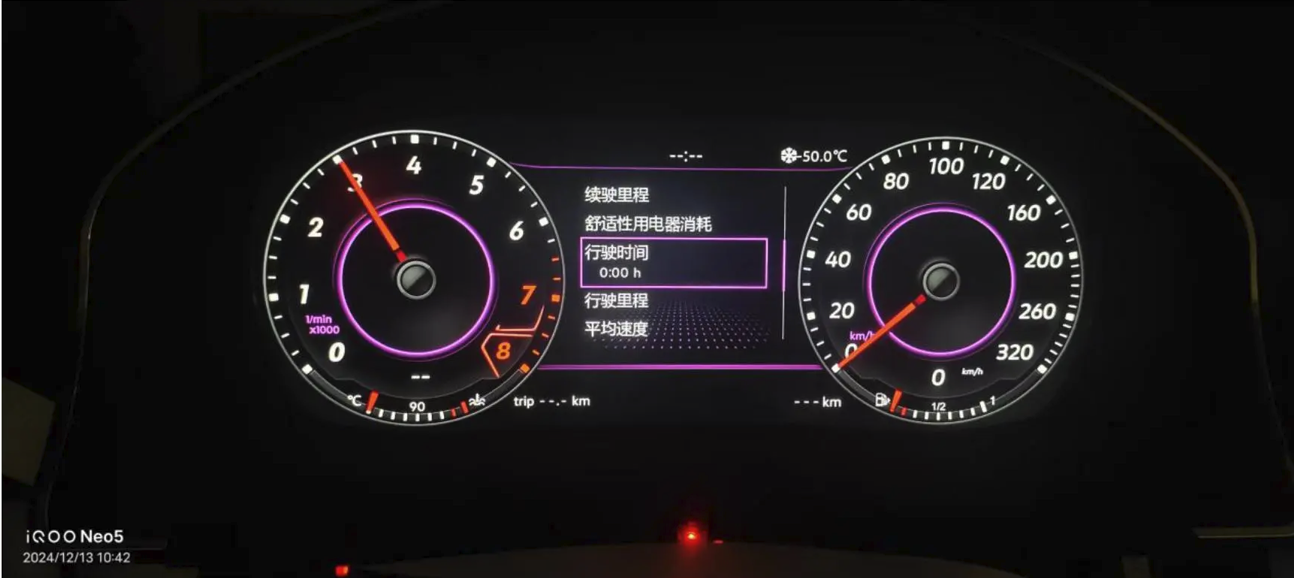
- Informations sur le véhicule : Affichage centralisé des défauts et des états pour un dépannage rapide.
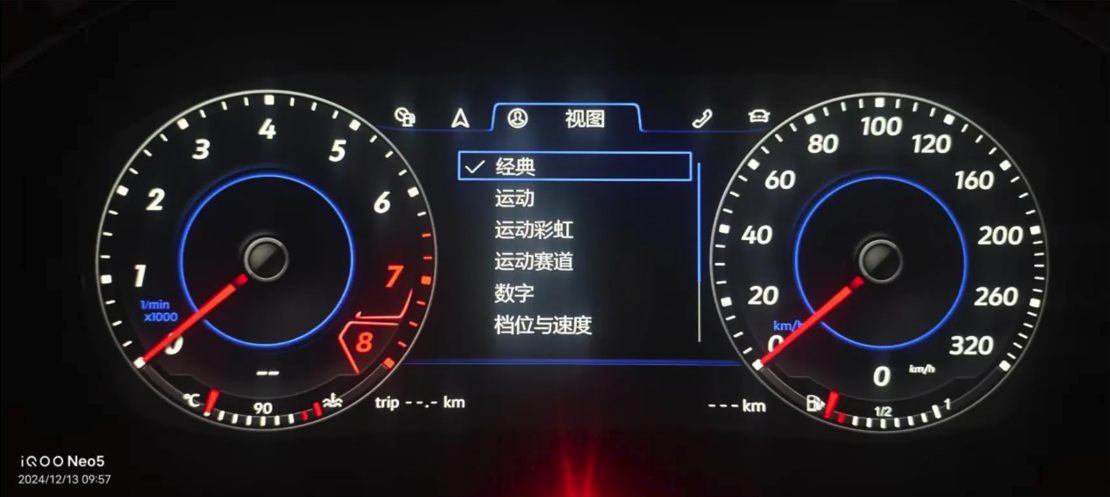
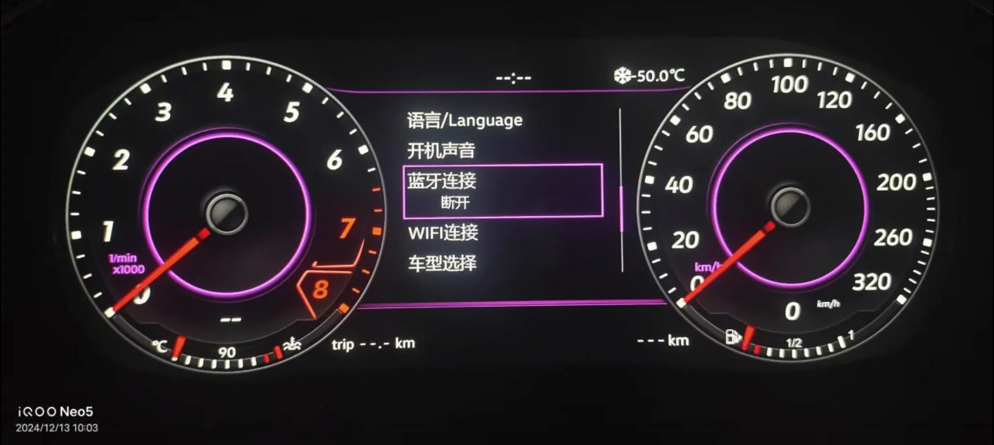
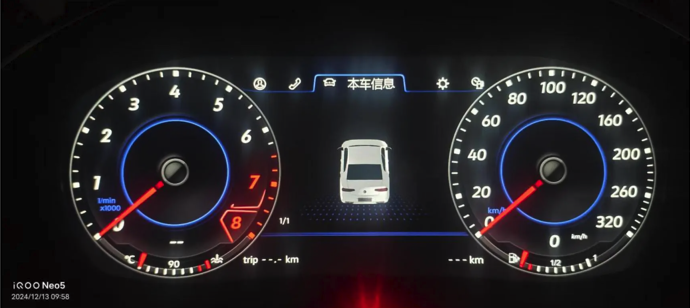
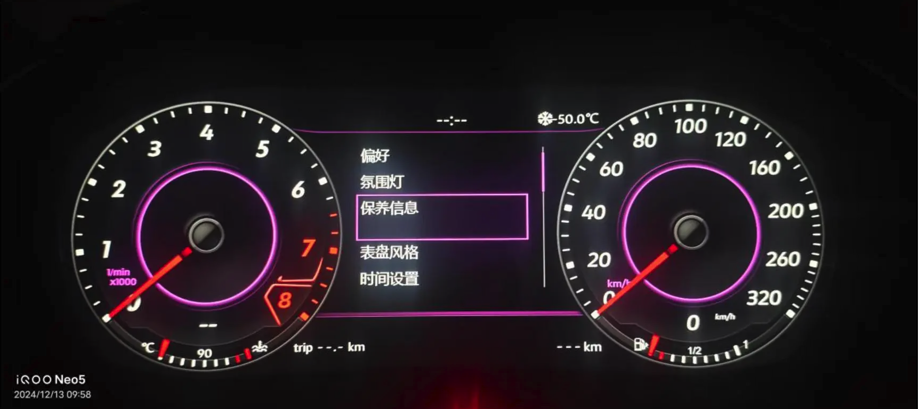
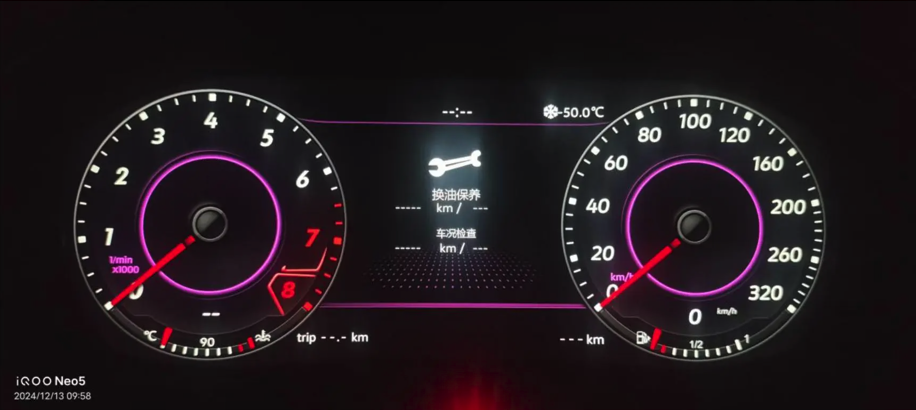
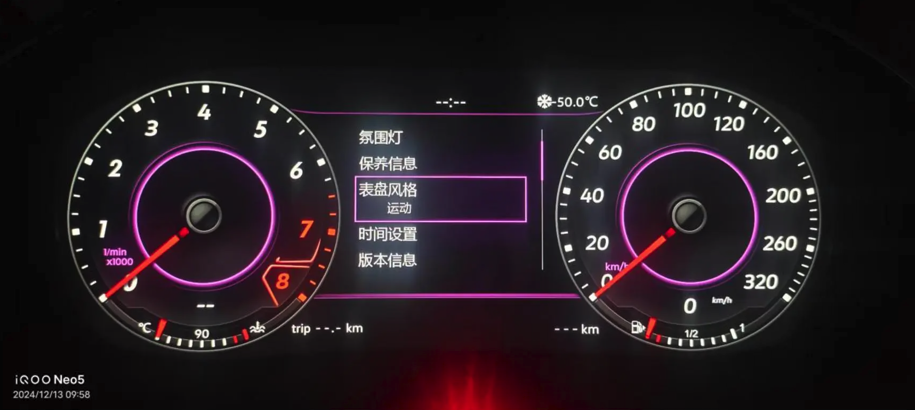
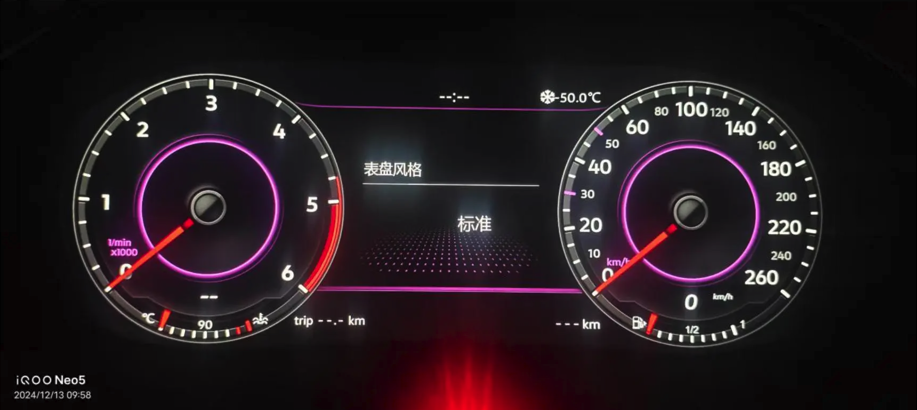
3) Couleur d'ambiance, informations d'entretien et styles de cadran
- Couleur ambiante : Réglez le couleur de fond du cadran pour s'harmoniser avec le style de l'habitacle.
- Entretien : Les intervalles d'entretien et le kilométrage sont indiqués ; La réinitialisation ou les modifications nécessitent un outil de diagnostic.
- Styles de cadrans : Modifier l'affichage du régime moteur/de la vitesse (par exemple, Classique/Sport) et la logique de disposition.
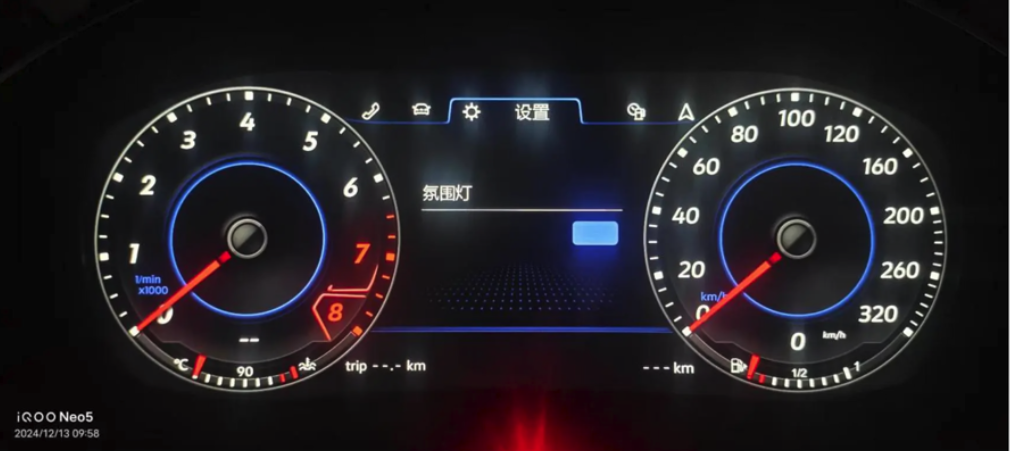
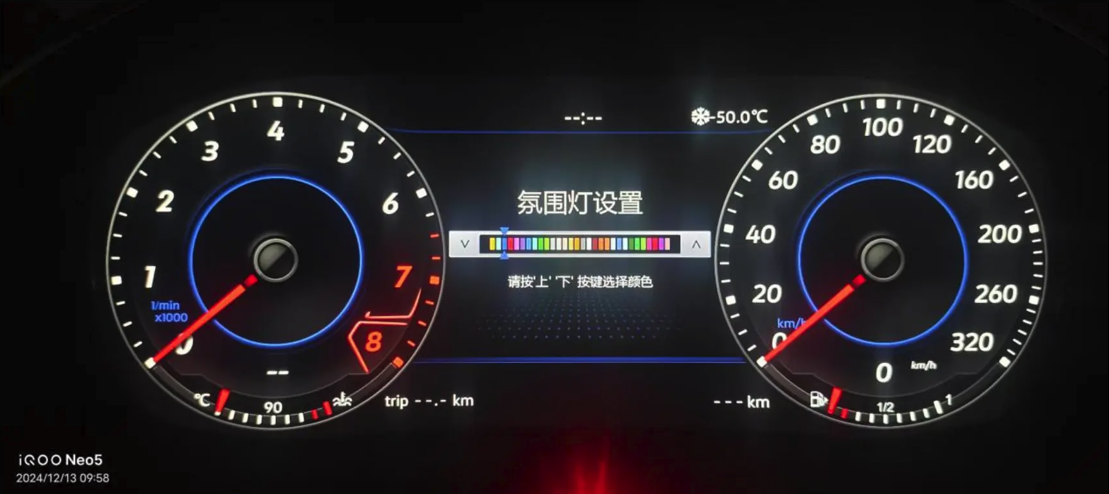
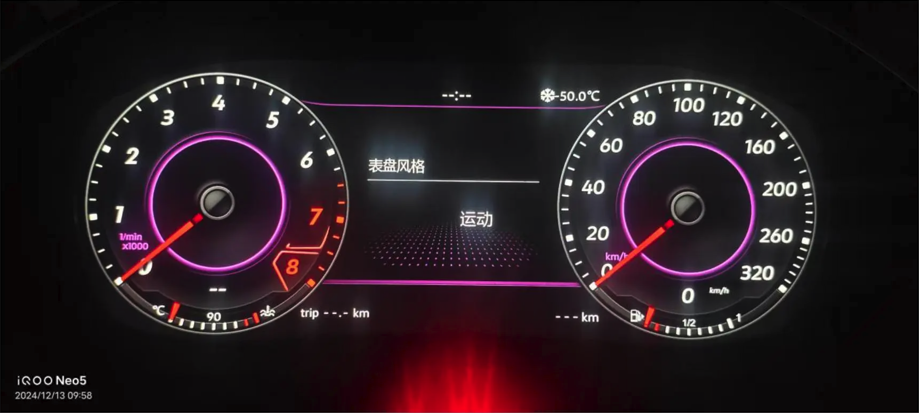
4) Heure, langue et son de démarrage
- Heure : Le plateforme PQ Il n'est pas possible de régler la date. Si l'écriture échoue la première fois, réessayez plusieurs fois. Sur certains tableaux de bord Audi, il faut passer à un autre écran et attendre environ 1 minute avant d'enregistrer.
- Langue : Prend en charge 9 langues.
- Son de démarrage : Régler le son de l'animation de démarrage ; pas de son au démarrage selon la version d'intégration de l'unité principale.
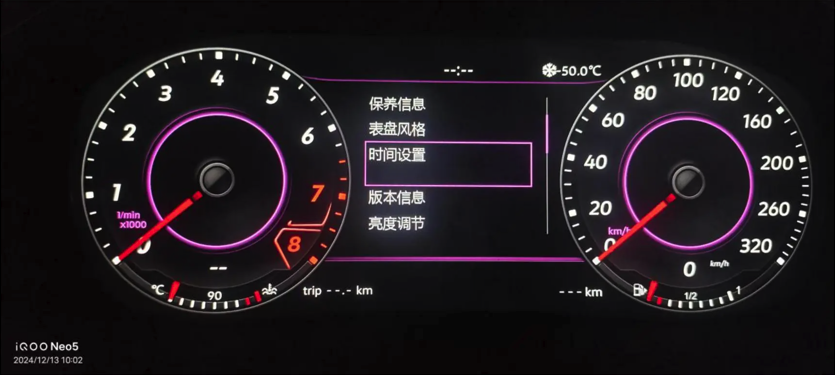
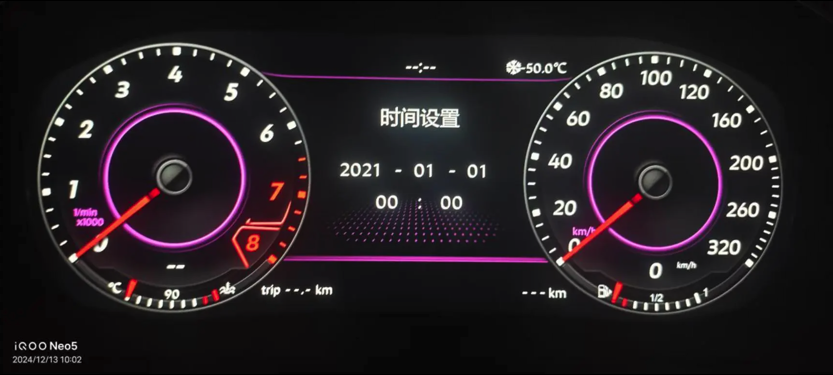
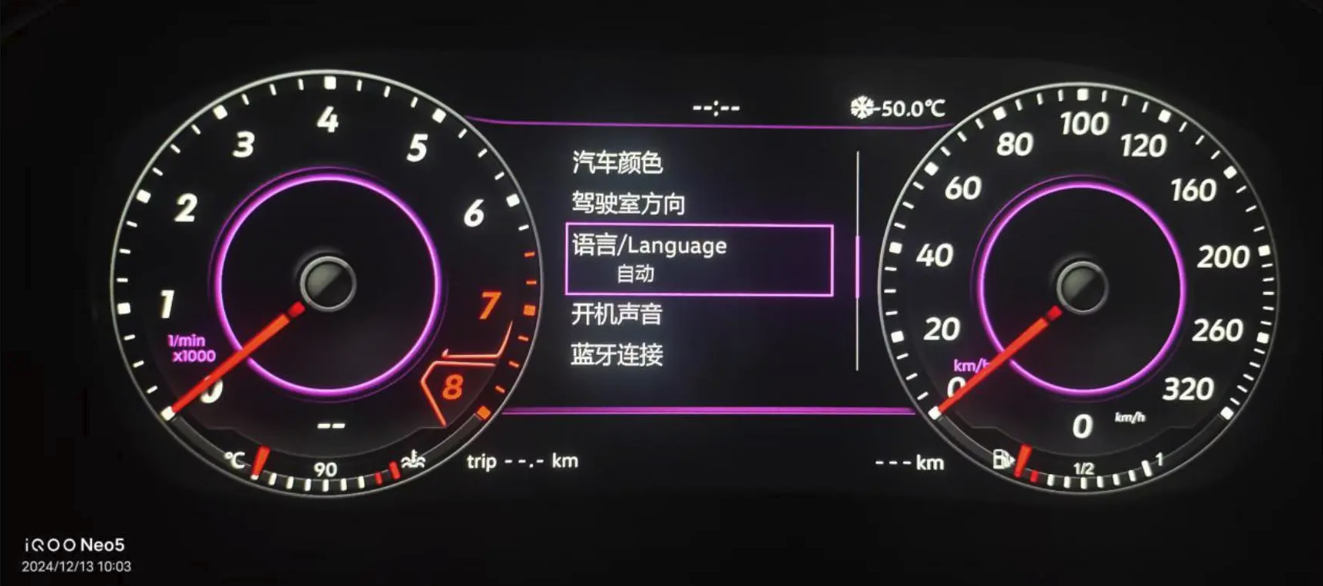
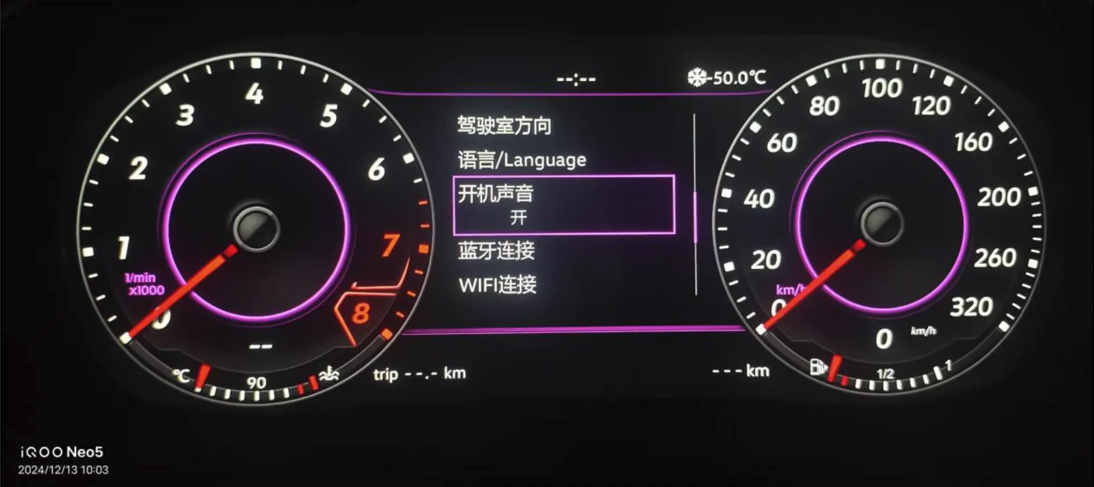
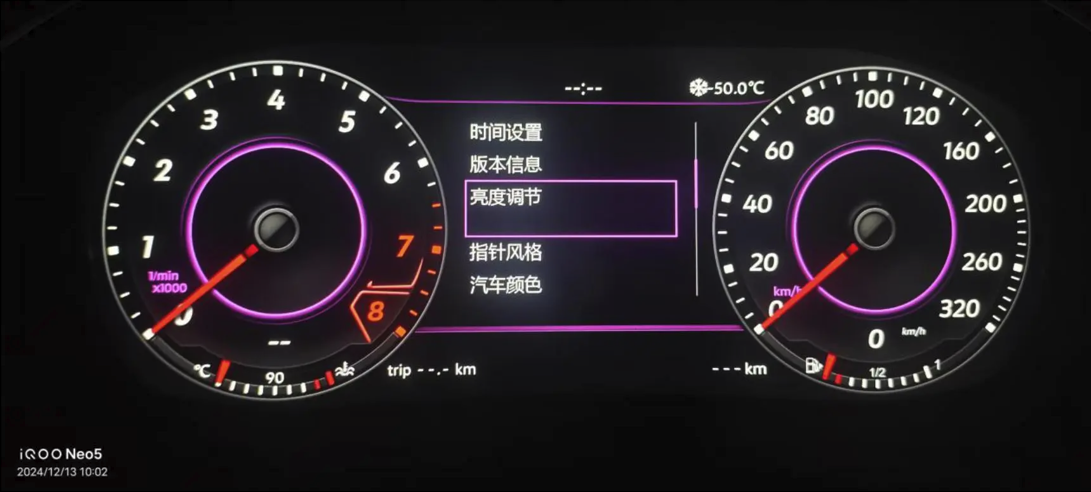
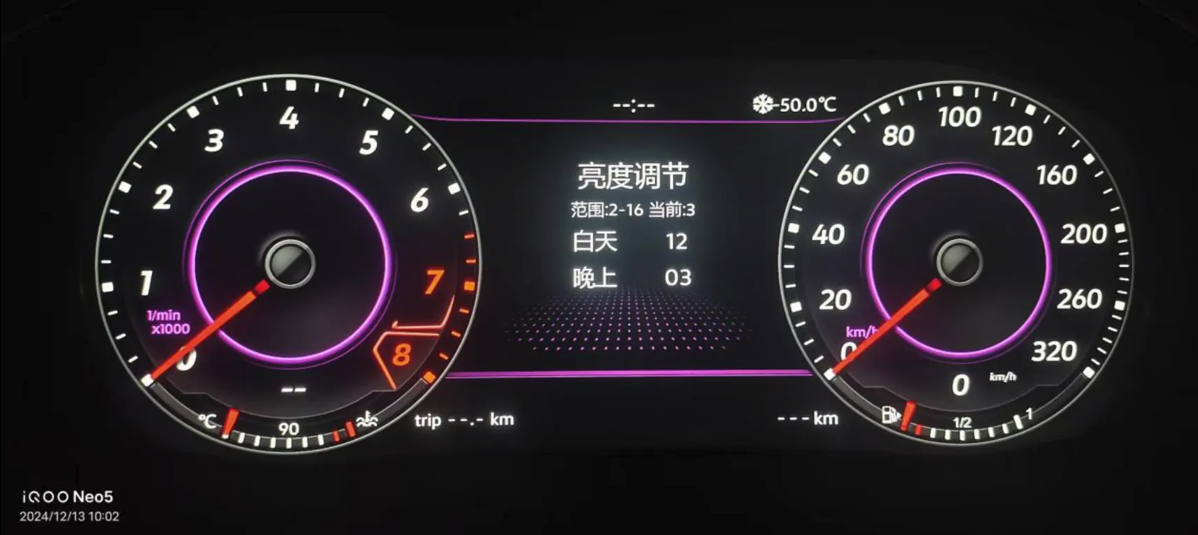
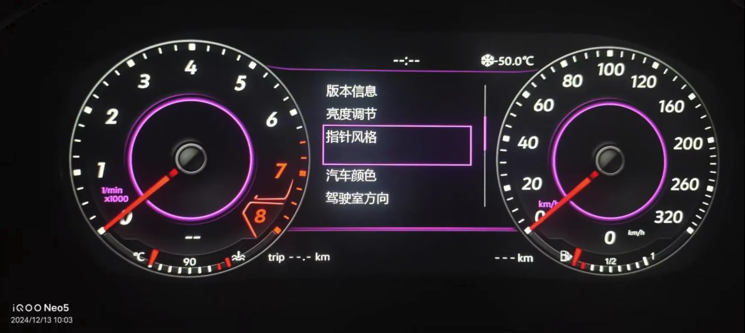
5) Luminosité, styles de pointeur et couleur du modèle de véhicule
- Luminosité : Sur certains modèles (limités par le protocole), la luminosité est mode manuel uniquement en mode nuit.
- Styles de pointeurs : Réglez la couleur et la sensibilité du pointeur pour améliorer la lisibilité et la réactivité.
- Couleur du modèle de véhicule : Modifiez la couleur de la maquette de voiture dans l'écran “ Informations sur le véhicule ”.
- Position du conducteur : Réglez la conduite à gauche (LHD) ou à droite (RHD) en fonction des indicateurs d'ouverture de porte de votre région.
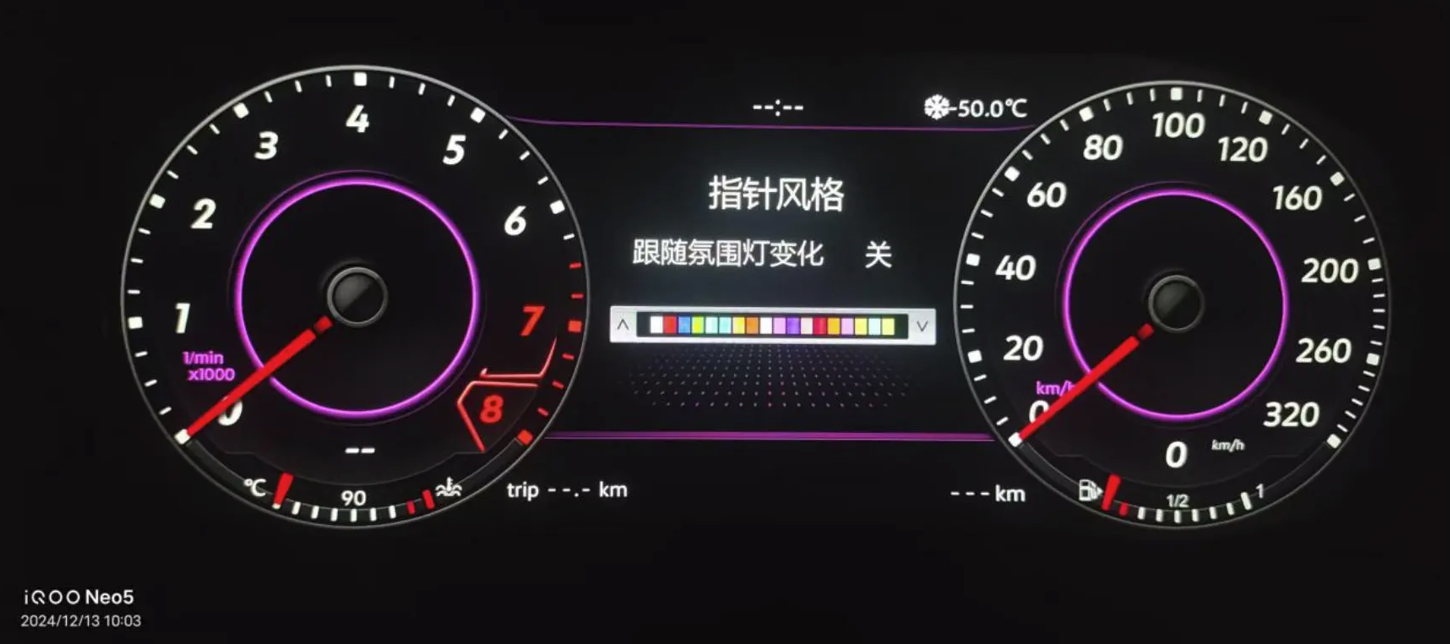
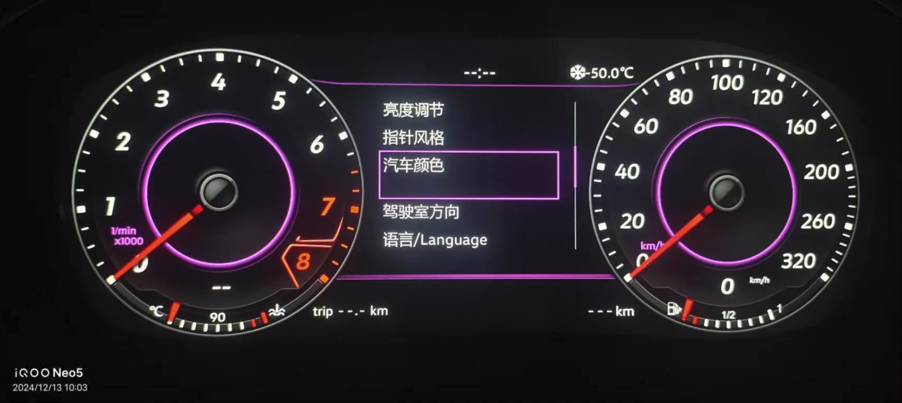
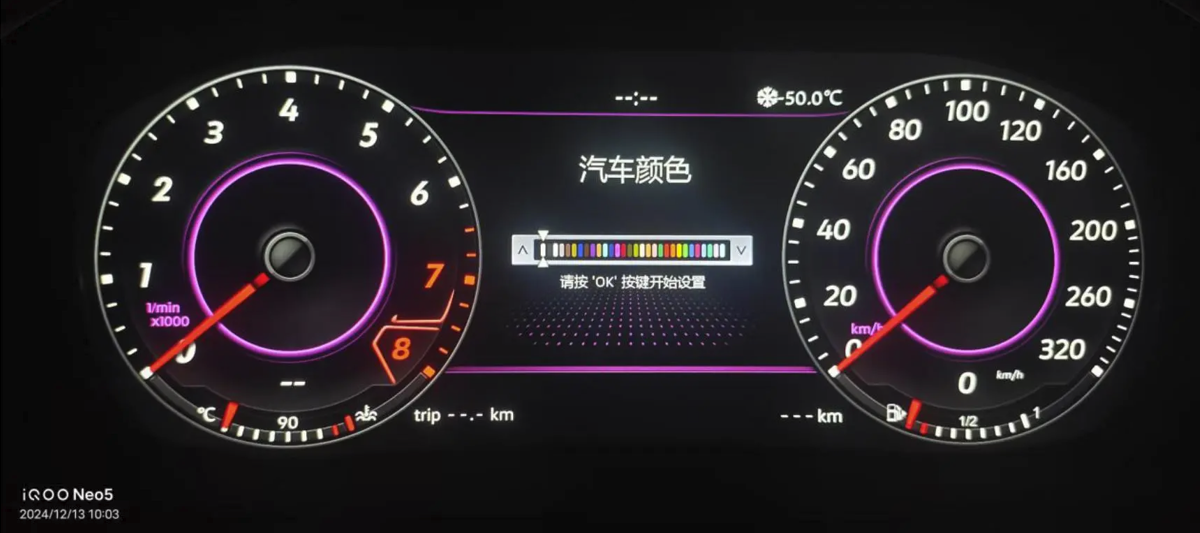
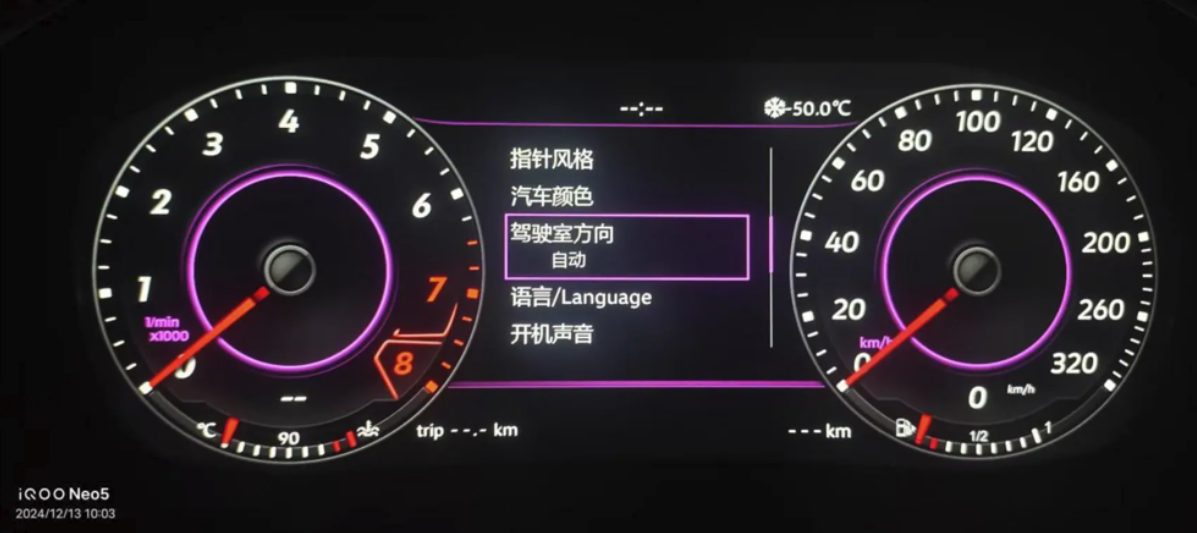
6) Informations sur la version, Bluetooth (développement) et Wi-Fi
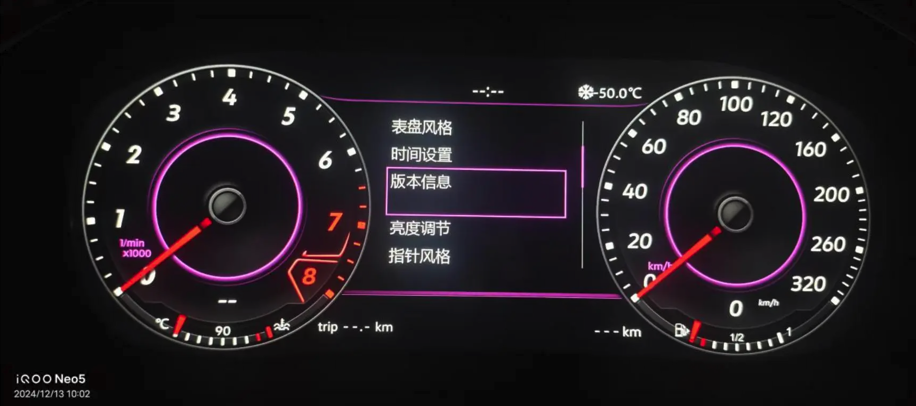
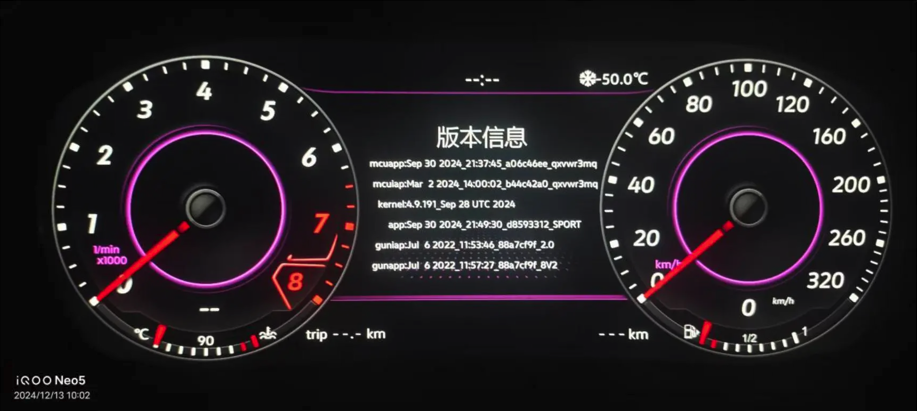
- Informations sur la version : Le mot “ app ” en minuscules est suivi de date du logiciel. Avant de signaler un problème, commencez par faire une capture d'écran de cette page.
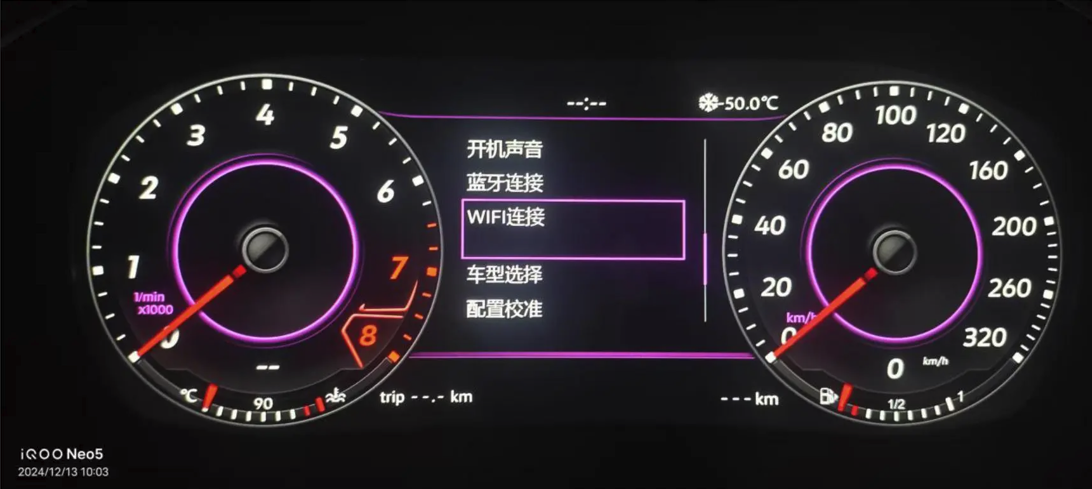
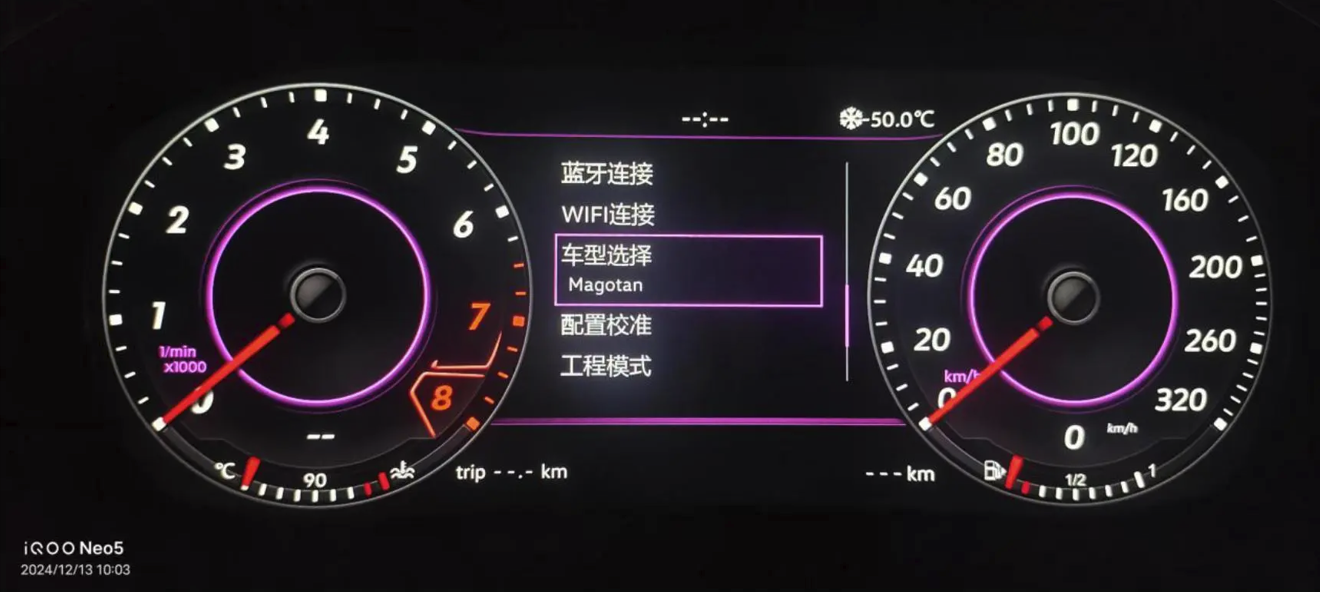
- Bluetooth (ingénierie) : Le cluster ne prend pas en charge les appels téléphoniques via Bluetooth ; ce menu est réservé à l'usage du service technique.
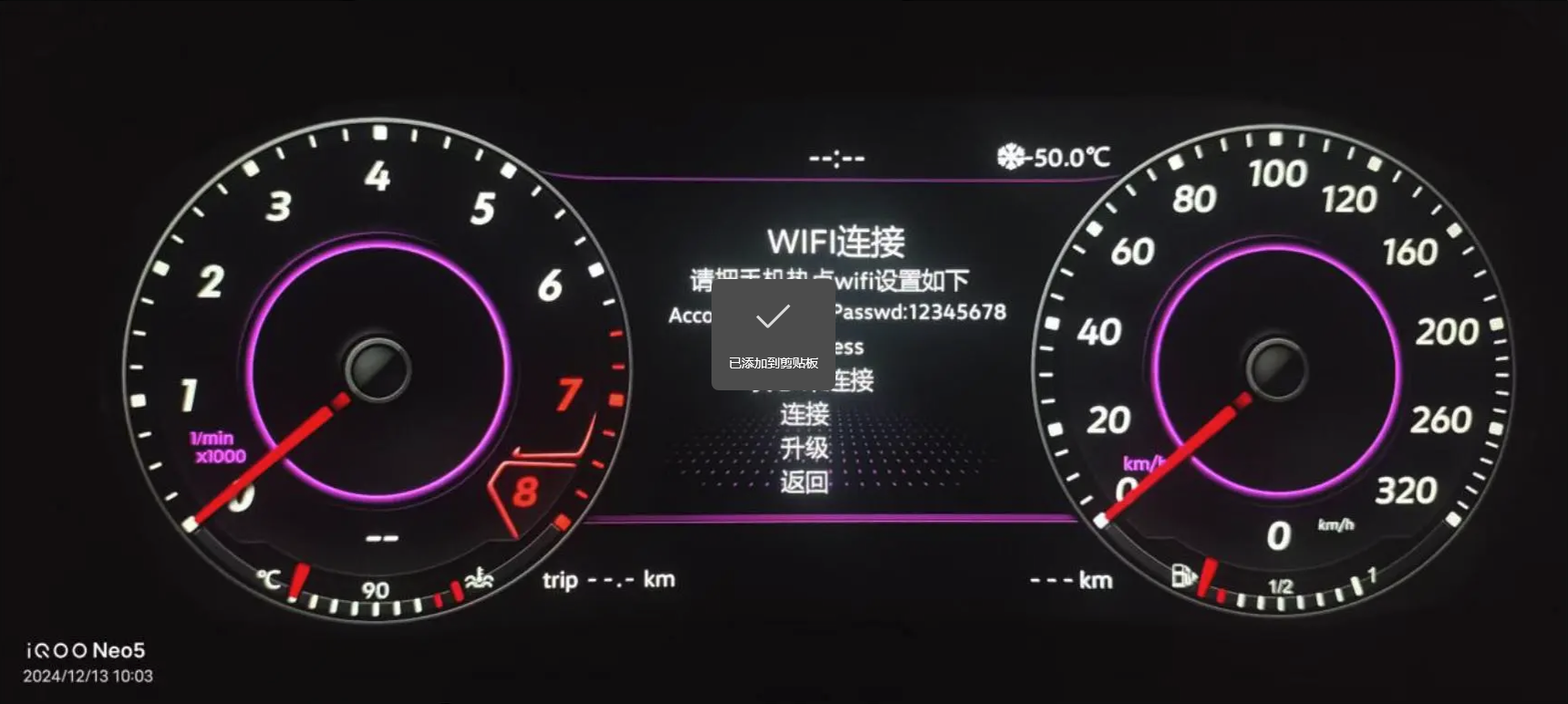
- Wi-Fi : Destiné aux mises à jour par téléphone et à la capture de protocoles à distance ; ne concerne pas les fonctionnalités destinées à l'usage quotidien des consommateurs.
7) Sélection du véhicule et mode ingénierie
- Sélection du véhicule : Après avoir modifié le profil du véhicule, coupez le contact et verrouillez la voiture pendant quelques minutes afin que les réglages soient conservés après la mise en veille ou la sortie de veille.
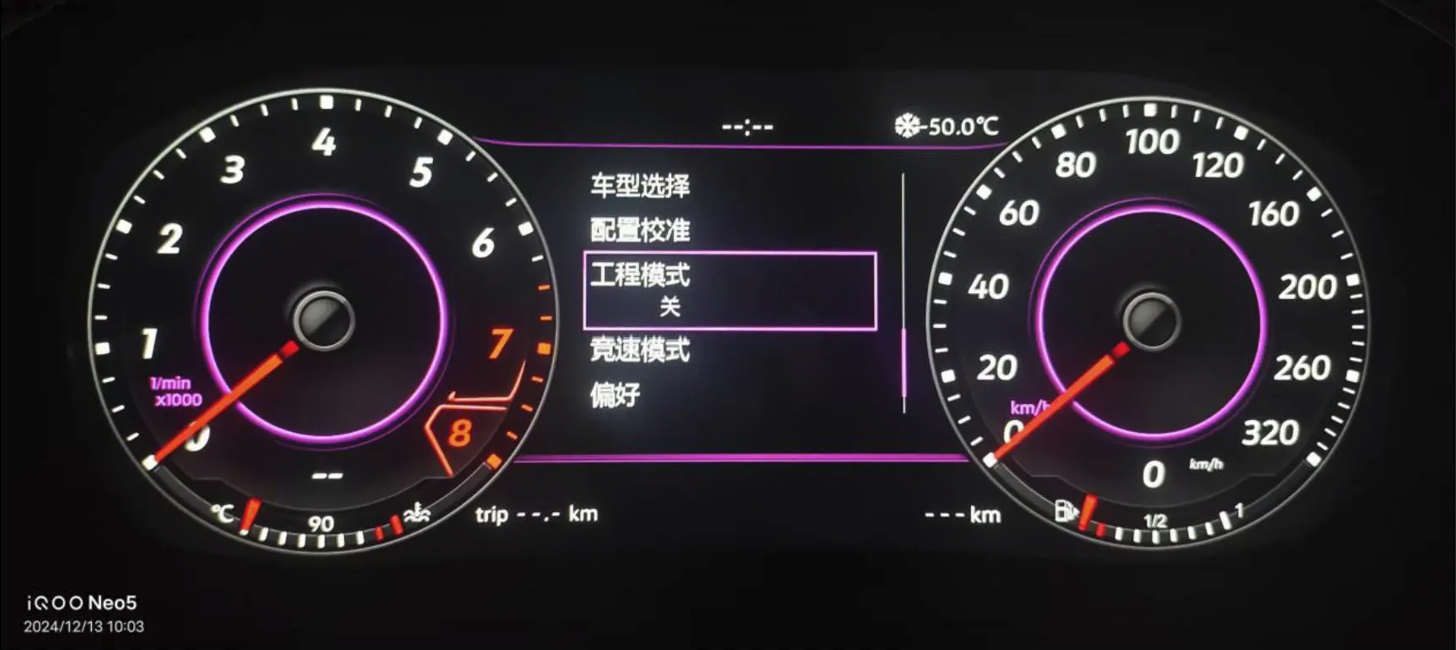
- Mode ingénierie : Pour la capture de protocoles et le débogage avancé. Évitez d'apporter des modifications sans l'avis du service d'assistance.
8) Étalonnage de la configuration (PQ / MQB)
Réessayez la traduction de l’anglais vers le français. Conservez inchangés les tokens de marque/modèle/spécifications, mais traduisez les mots ordinaires. Important : Le MQB en général ne nécessite un étalonnage de la consommation de carburant ; PQ l'exige conformément à la vidéo d'installation.
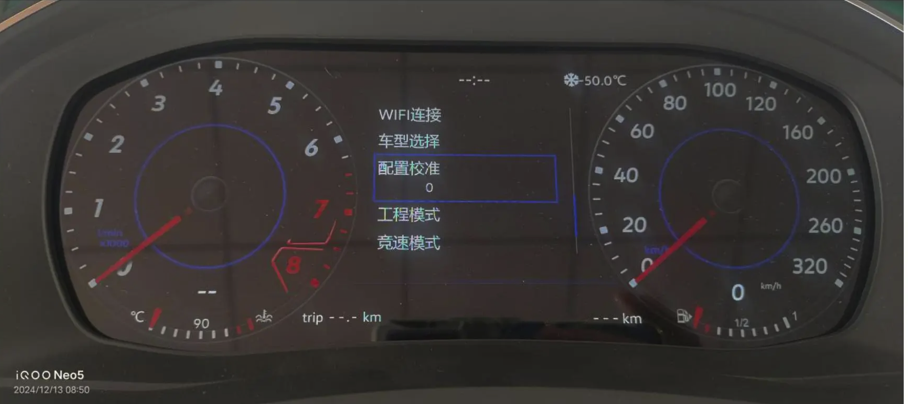
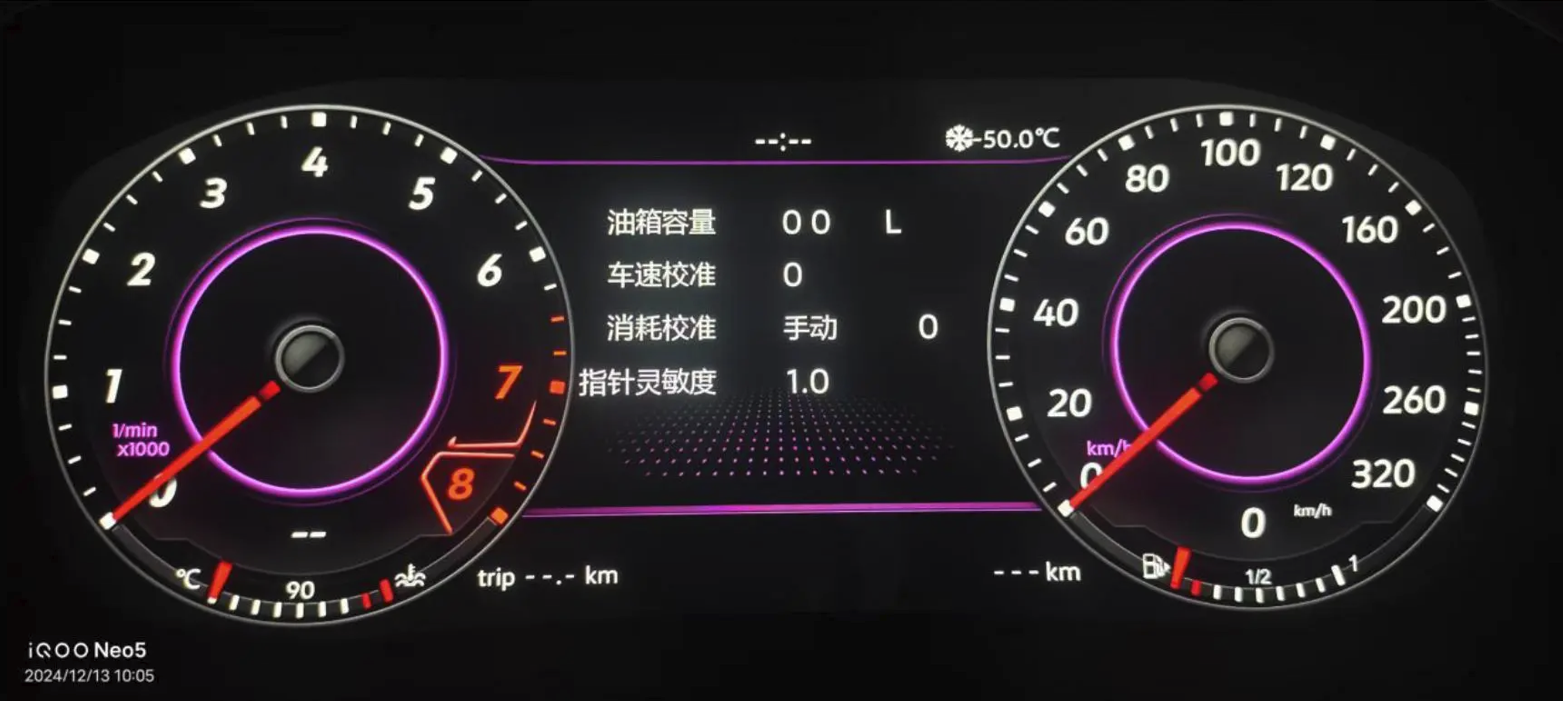
- Calibrage du carburant PQ : Suivez les étapes indiquées dans la vidéo sous la rubrique “ Calibrage de la configuration ”.”
- Étalonnage de la vitesse : Utilisez la vitesse indiquée par le GPS de votre téléphone comme référence. Si le GPS indique 120 km/h et que le tableau de bord affiche 118 km/h, réglez le décalage de vitesse sur +2; sinon, utilisez une valeur négative.
- Sensibilité du pointeur : Ajuster la réactivité de l'aiguille du compte-tours pour reproduire la sensation d'origine.
9) Préférences et affichages courants
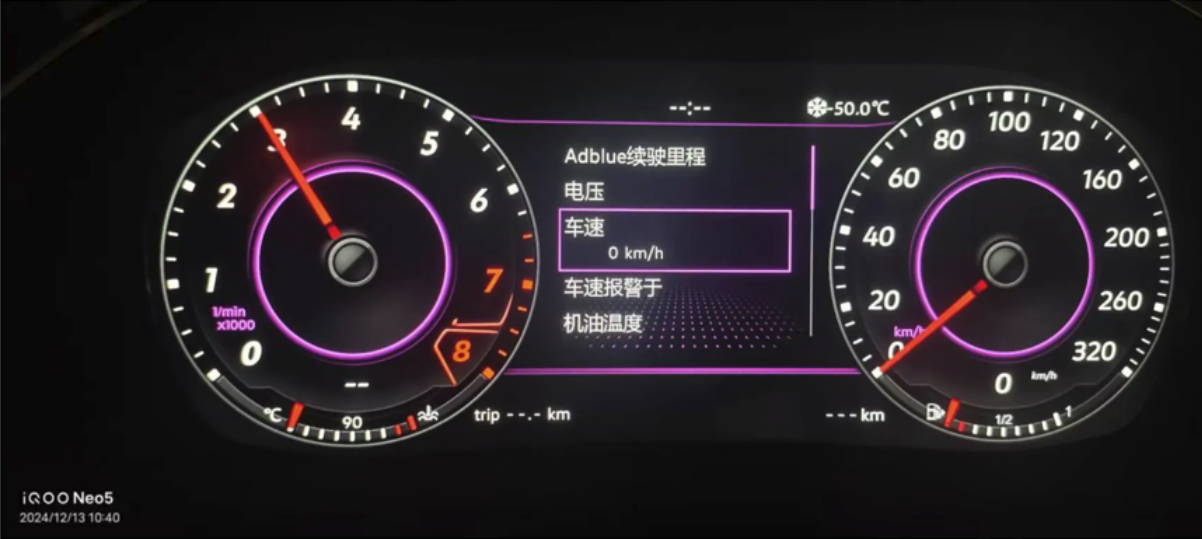
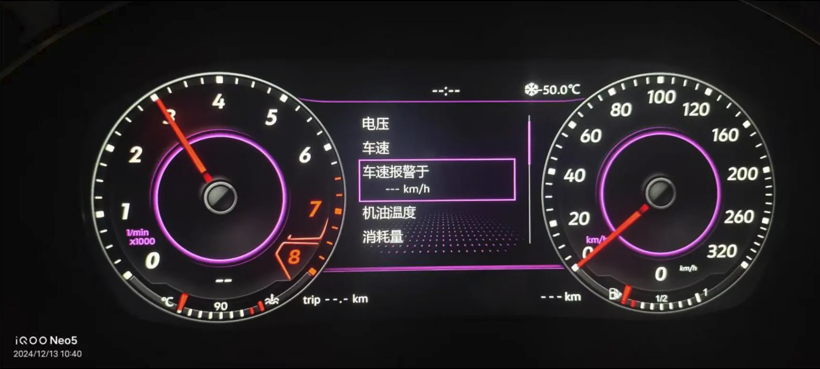
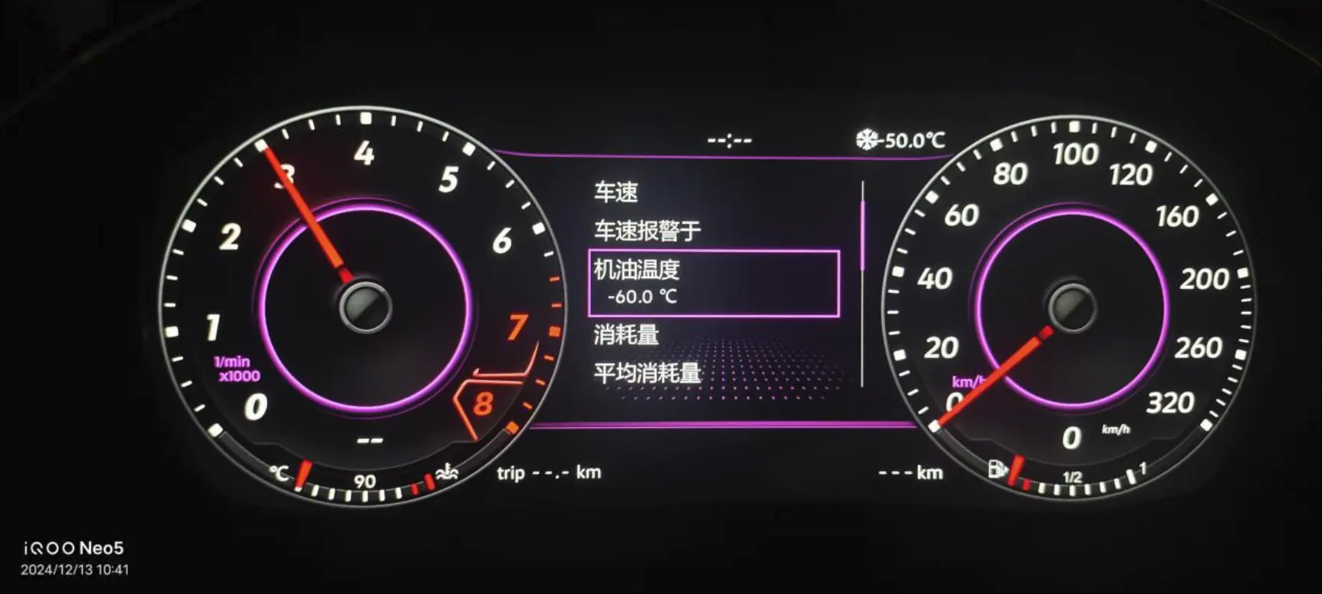
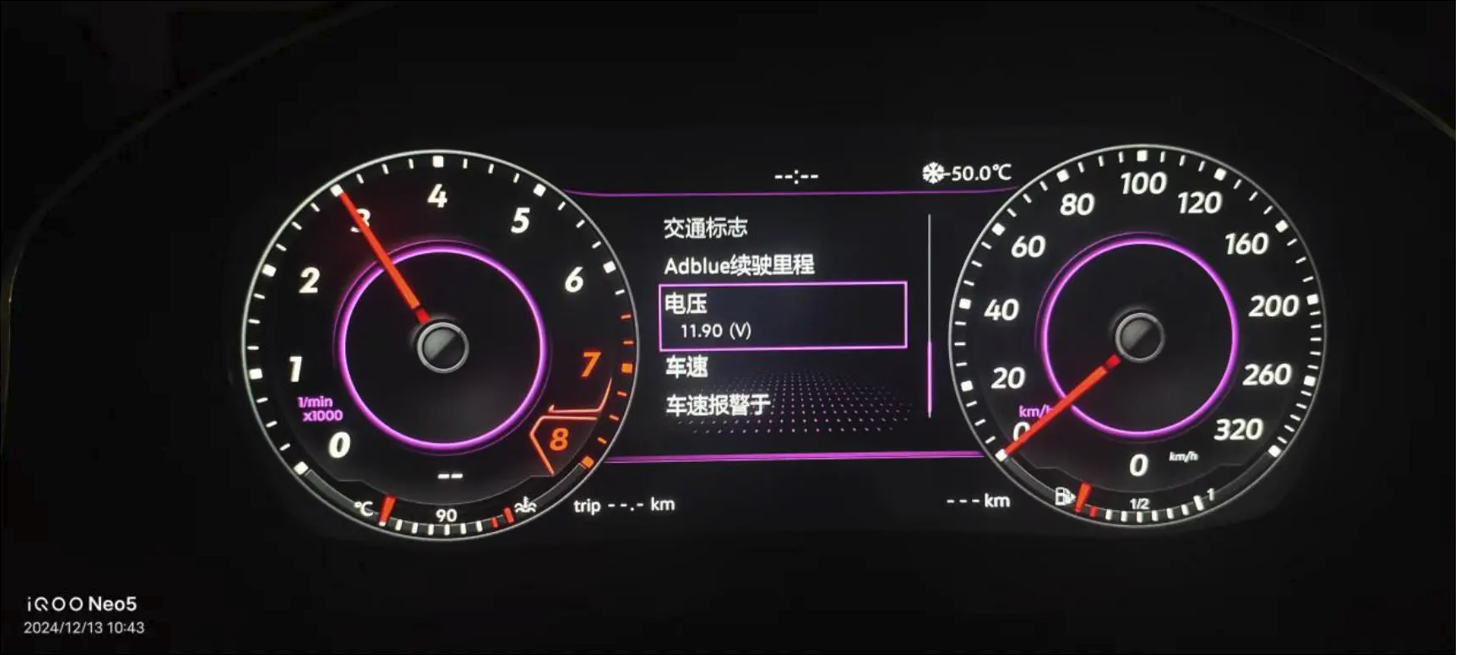
- Préférences : Affichez plusieurs informations (vitesse, alertes, données sur l'huile, etc.) sur un seul écran.
- Vitesse et alertes de vitesse : Définir les seuils pour les avertissements sonores et visuels.
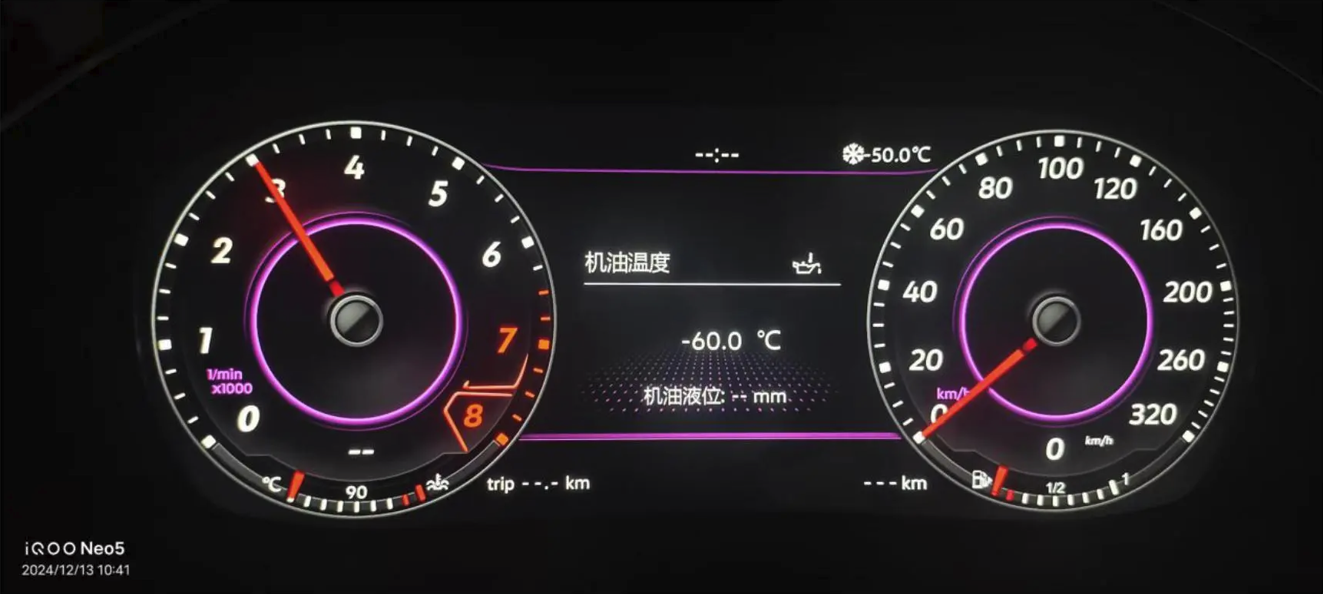
- Température/niveau d'huile : Données en temps réel pour la gestion thermique et l'état du moteur.
- Réinitialisation du compteur kilométrique : Utilisez la touche de groupe située en bas à gauche TRAJET → KM pour effacer.
- Tension : Affichage de la tension de la batterie pour une détection précoce des baisses de tension.
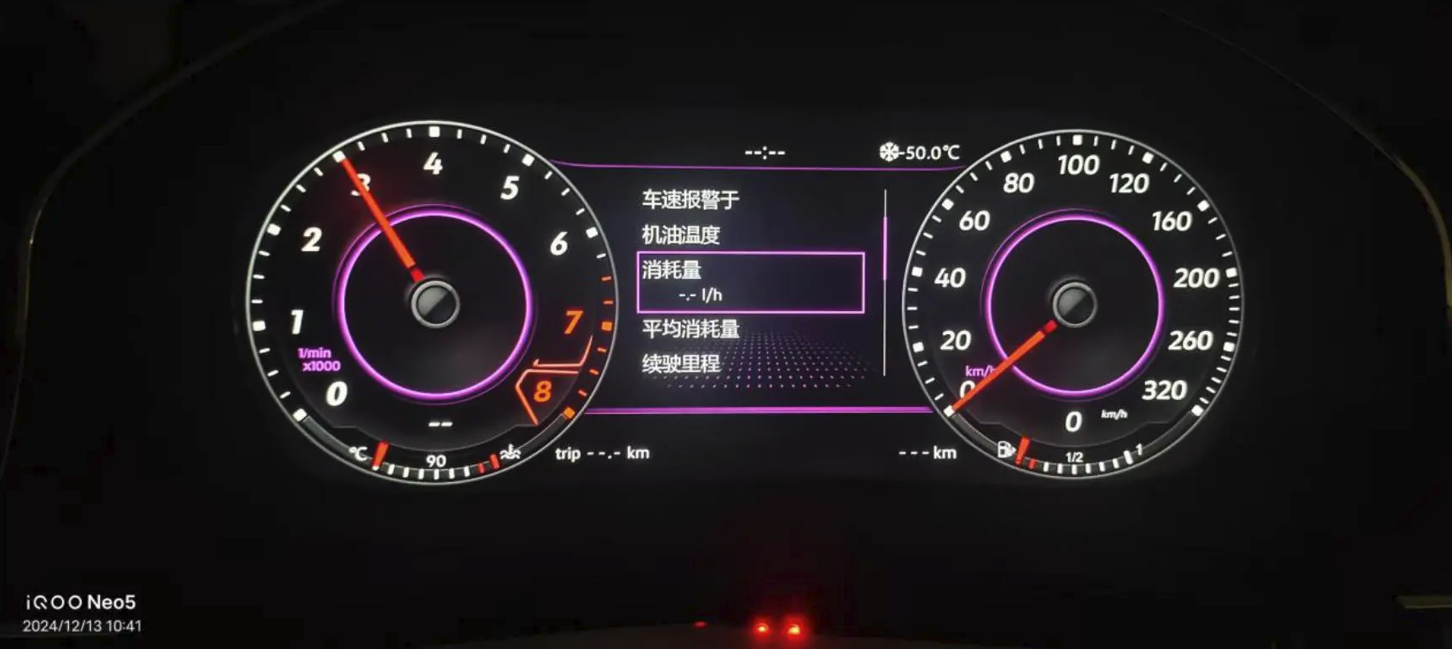
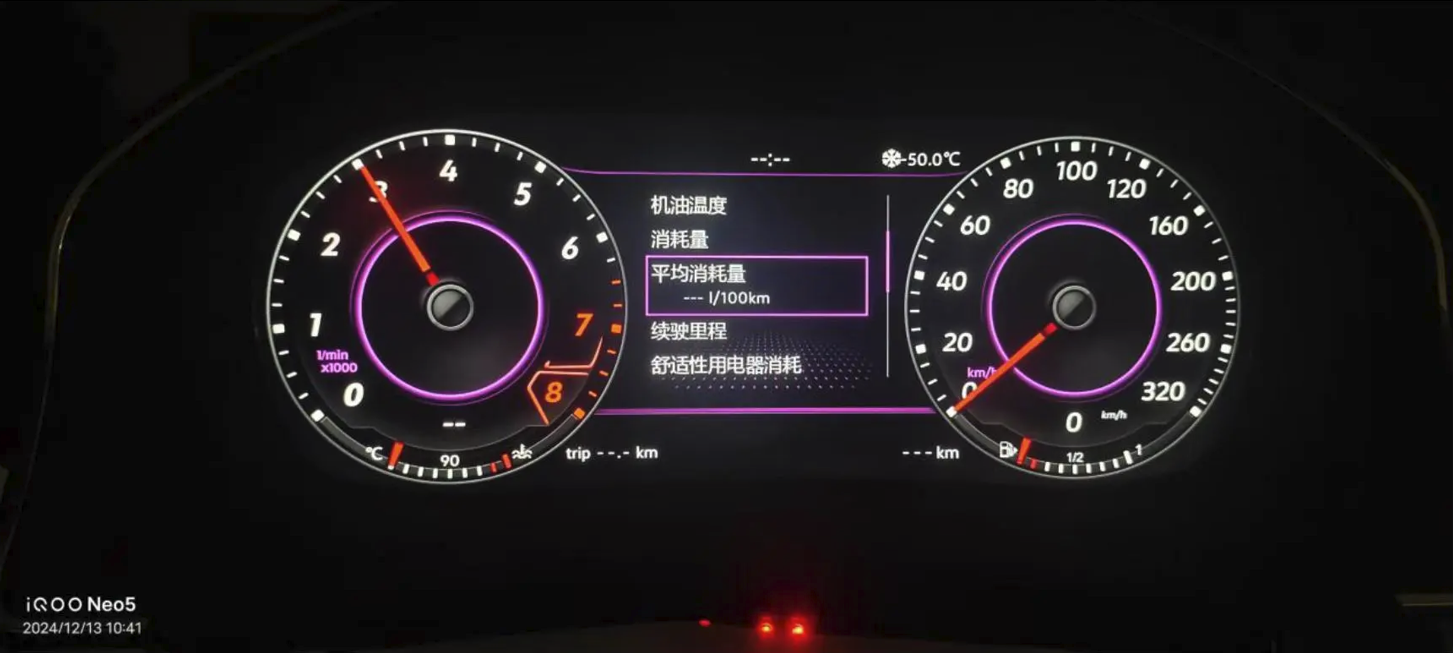
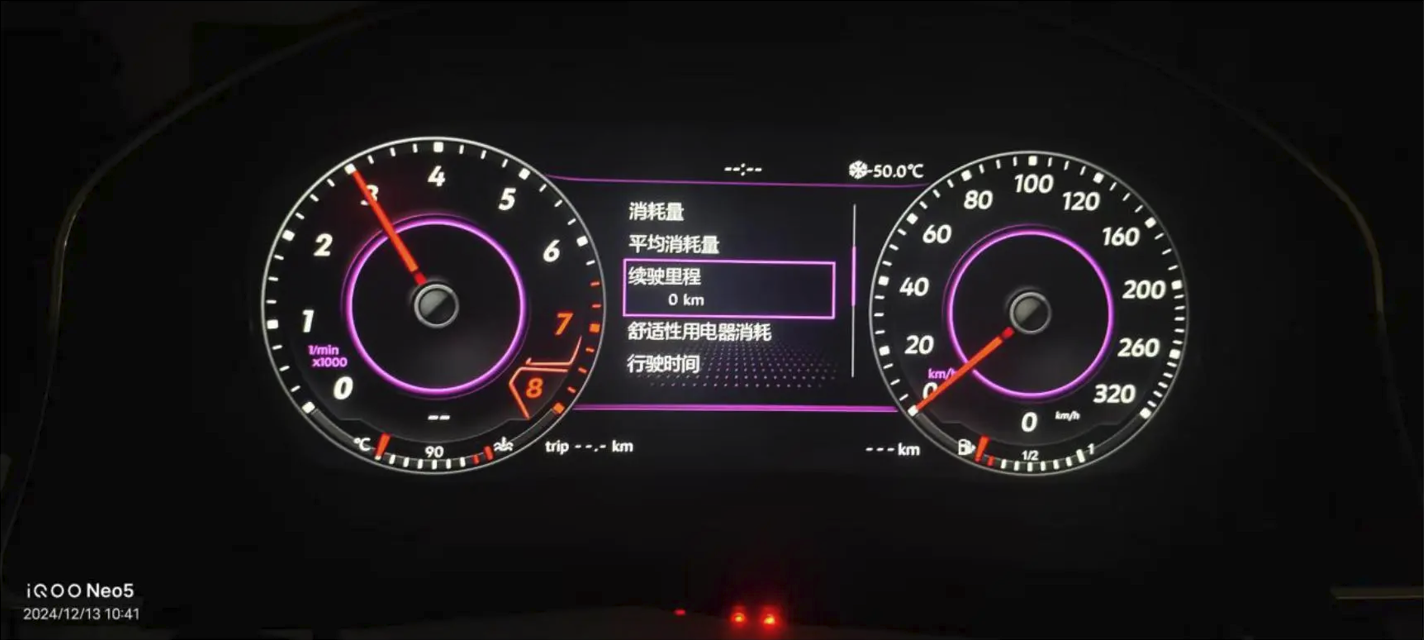
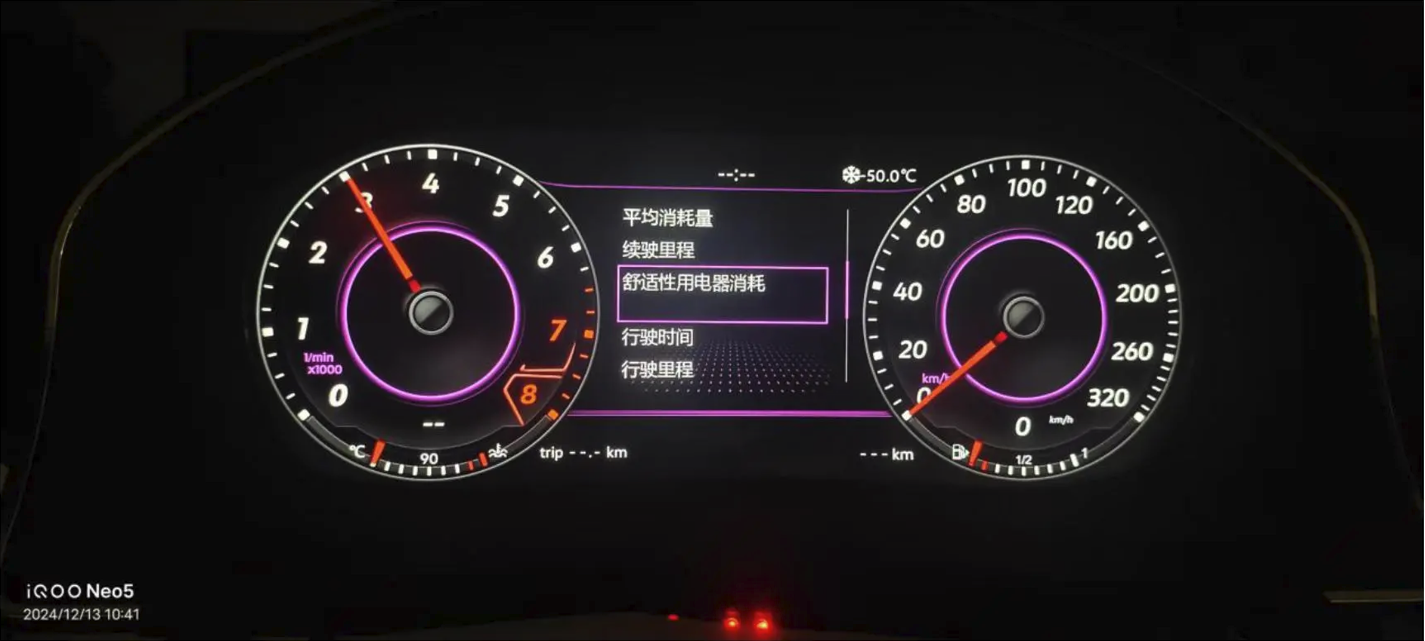
Remarques concernant l'intégration et la mise à niveau
- Intégration d'un autoradio Android : Synchronisez les thèmes des écrans et les instructions étape par étape avec l'unité principale pour une expérience fluide affichage du cockpit virtuel expérience.
- Compatibilité CAN-BUS : Vérifiez la passerelle, la configuration du volant, la présence de la caméra et de l'amplificateur, ainsi que les indicateurs ADAS pour garantir une communication stable.
- Faisceau de câbles prêt à l'emploi : Privilégiez les faisceaux PnP pour éviter de couper les câbles d'origine ; cela réduit les risques liés à l'installation et préserve les fonctionnalités d'origine.
- Lignée de conception : La logique de l'interface utilisateur et les schémas visuels s'inspirent de configurations haut de gamme telles que le Cockpit numérique de la Mercedes Classe S et Tableau de bord programmable BMW, adapté à Ikagoo’s Tableau de bord à écran LCD pour voiture format.
- Variantes de dénomination : Certaines marques peuvent appeler cela un tableau de bord à écran LCD ou groupe d'instruments numériques; Volkswagen l'appelle Volkswagen Active Info Display sur les plateformes MQB.
Assistance et rapports sur les versions
Si vous rencontrez des problèmes d'affichage ou des questions de compatibilité, commencez par enregistrer le Informations sur la version écran (la ligne “ App ” avec la date) et envoyez-la au service d'assistance. Pour un diagnostic plus approfondi, le service d'assistance pourra vous demander d'activer le Wi-Fi et le mode ingénierie afin de permettre la capture à distance des protocoles.








Add comment
Vous devez vous connecter pour publier un commentaire.